|
Screenshots that will guide you thru some of the DBComparer features
|
|
|
|
|
|
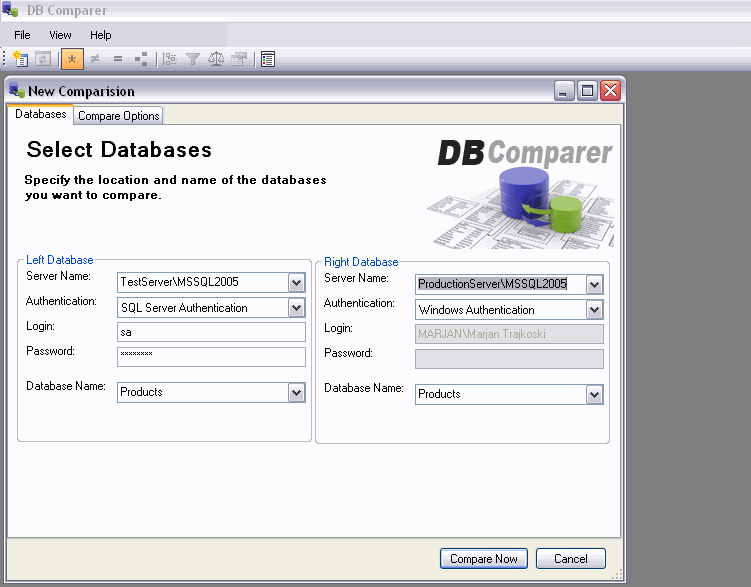
Image below display how too choose both databases for comparison
|
|
|
|
|
|
|
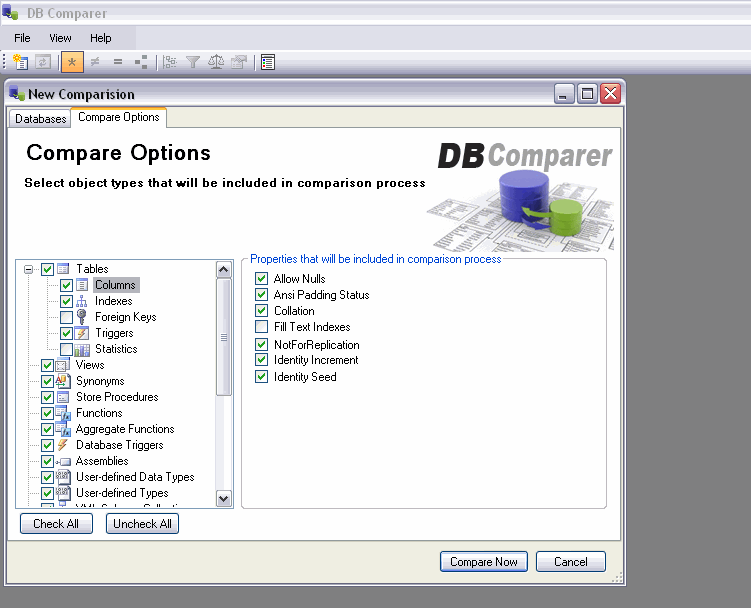
Before process of comparing you are able to choose among wide variety of objects
and it’s properties for comparison.
|
|
|
|
|
|
|
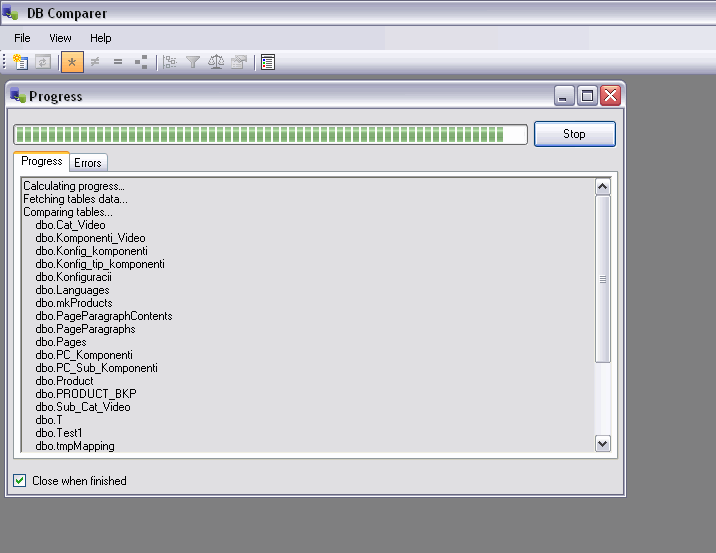
After “Compare Now” button is clicked, the process of comparison starts. Image below
shows the dialog that gives you clear picture about the status of comparison process.
Note that this is best performance comparison software on the market today.
|
|
|
|
|
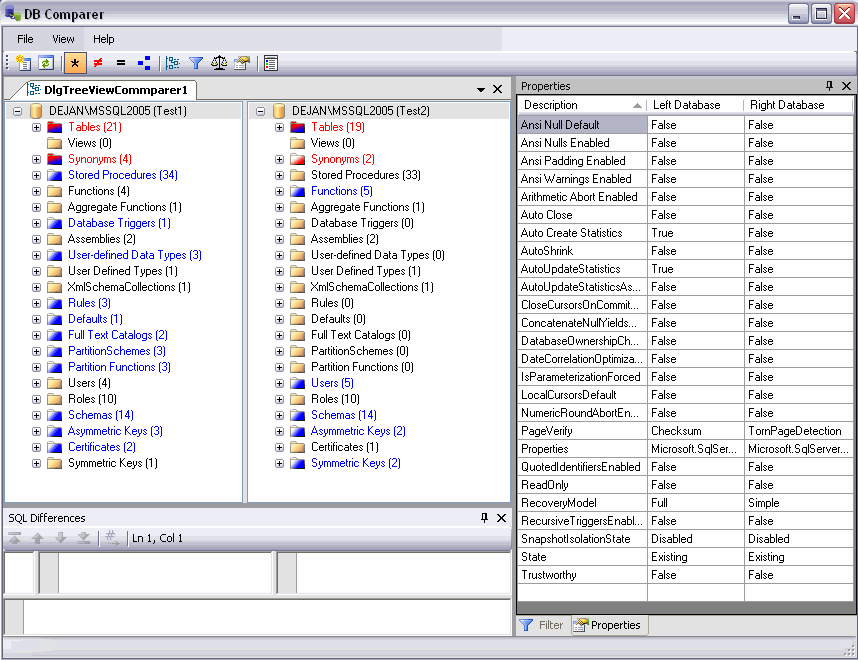
After comparison process, dialog as presented below is displayed. Here you can observe
all the differences between two databases. If you click on desired object you will
find the exact difference in editor bellow and properties window (left). Also there
is ability to filter objects for better observe.
|
|
|
|
|
Properties and filter options
|
|
|
|
|
|
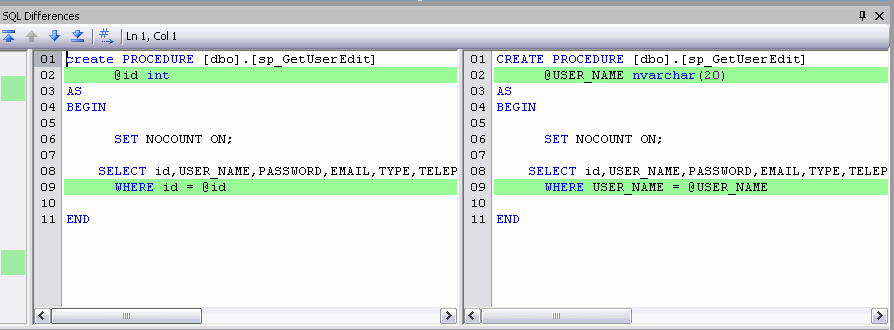
Screen shot taken after clicking on some object that is different in two databases
(in this case store procedure). You can copy from this editor and easily apply changes
to your desired database.
|
|
|
|
|
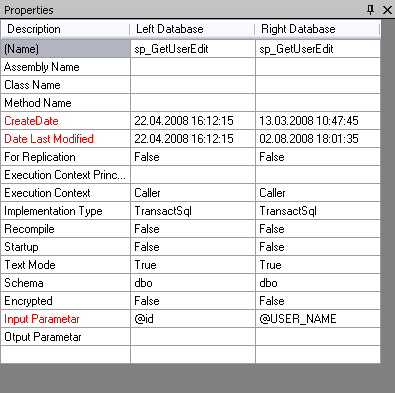
Properties window that display differences.
|
|